Last updated on 12 May 2026
This is the kind of utility that is indispensable in the teacher’s or trainer’s digital tools.. A tool to simply take screenshots on your computer to illustrate a course or make a tutorial.
Here is a list of seven of them that I had the opportunity to test. Complete, mostly free, they allow to create screenshots and enrich them before sharing them. Some of these screenshot tools also offer the possibility to make screencasts, videos showing what is happening on the screen.
Table of Contents
Awesome Screenshot

This is a plug-in that is installed on your browser. It allows you to capture all or parts of a web page. Convenient and lightweight, you will always have it on hand to capture via a simple click. Awesome screenshot had the good taste of not forgetting anyone. It works on the main web browsers: Chrome, Firefox and Safari.
Link: Awesome Screenshot
Snaggy

Another utility simple enough to capture all or part of your screen this time. Snaggy is a less intuitive to use. You have to remember the keyboard shortcut to take a screenshot. You will find it on the homepage of the website: Command+Shift+Control+3. Do it then go to Snaggy's website and do Command+V. Snaggy will create the image of the capture and provide you with the tools to edit and annotate it. By the way you get a unique URL to share it easily. You can also download to your computer.
Link: Snaggy
Bounce
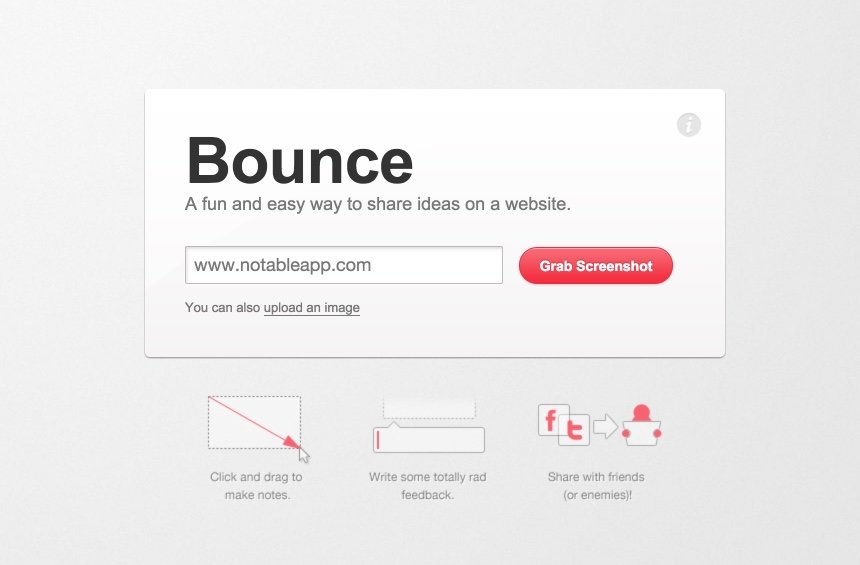
Initially Bounce was designed for collaborative work. This is one of its strengths. it makes it possible to annotate to several a screenshot taken on a website. To use it, simply indicate the URL of the page you want to capture. Bounce will immediately capture an image of the page in question on which you can draw areas and insert annotations. You will get a unique URL to share. By going there, other users will be able to see your annotations, but also add their own.
Link: Bounce
Jing

With Jing, we move to more professional tools, heavier too. Jing is a full-fledged application that you need to download. The software runs on both Mac and PC. Installed on your machine, it will run as a background task while remaining available at all times. It allows you to capture an image of all or part of your screen. It offers comprehensive annotation tools that will allow you to enrich the image with your comments or annotations before sharing it. Note that Jing also allows you to record a video capture of your screen. Ideal to show a manipulation. Each video is limited to 5 minutes.
Link: Jing
MonoSnap

This is one of my favorite tools in this list of the seven samurai from the screenshot. I have presented MonoSnap right here some time ago. MonoSnap is also a software for Mac and PC. It also works on iPhone and iPad. MonoSnap is characterised by an impressive range of annotation tools. All the tools you need to express yourself on each of the captures. Monosnap also offers an online storage space where you can keep your screenshots if you wish. The software also makes it possible to make short videos of your computer screen.
Link: Monosnap
CloudApp
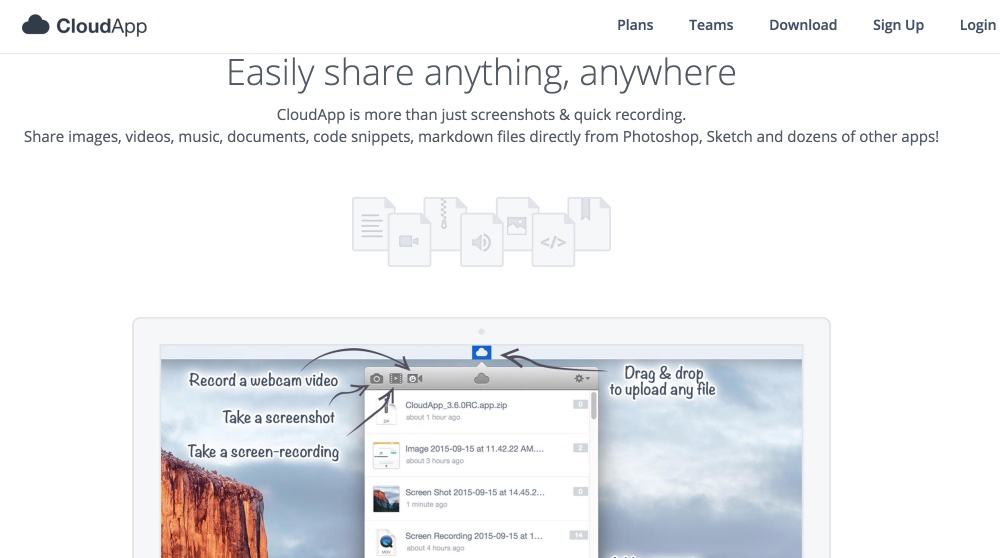
CloudApp is a newer application that is effective enough to take screenshots, screencasts and share or even comment on them as a team. CloudApp works on Mac, PC and iOS. This tool, in addition to capturing all or part of your screen, makes it possible to make videos or even GIFs animated by a manipulation. That's great. It can also use your webcam to record your trombine.
Link: CloudApp
Evernote

The best for the end. I have already told you all the good I think of Evernote. I have not changed my mind. The tool that will give your digital life an elephant memory also offers a particularly comprehensive and effective screen capture and annotation tool. Install the Evernote extension on your browser. A click will then bring up a menu allowing you to store and archive in Evernote notebooks a screenshot of the page you are viewing. You can capture the entire web page very neatly, i.e. identify the area you want to capture. Evernote also offers an editor that allows you to add text, color and pictos to enrich your screenshot before archiving or sharing it. Stunning.
Link: Evernote

 English
thank you for this presentation of really high-performing tools
It lacks in this list one of the best, free and open source additional: ShareX.
https://getsharex.com/
thank you for this article
Hello,
I'm a greenshot fan.
http://getgreenshot.org/fr/
Greenshot is free and open source.
Greenshot was released under GPL, namely that this software can be used for free, even in a commercial environment. »
JB
Software for formatting educational scripts: "ScenariChain" , digital video compression: formatFactory .
All this will be your help for a better modularity of courses adapted to your . audience
Thank you Fidel for these excellent pipes.
Awesome Capture is my favorite tool under Firefox OSX and Windows, but also under IOS where the app of the same name automatically installs as an ‘extension’ and therefore offers the fold to capture the entire screen.
Patrick
hat! your articles are interesting , I will not hide that I took advantage of the tools you show us each time.I will ask you if there would be the possibility to inform us about mooc or elearning related to tices.I thank you