Last updated on 23 July 2026
Rasterbator is an already old site that allows to make Wall Art. From wall art to everyone's reach with an online tool that allows you to print a single image on multiple sheets of paper. Do not rely on appearances, behind a real simplicity hides a tool that allows you to give free rein to your creativity to create large posters.
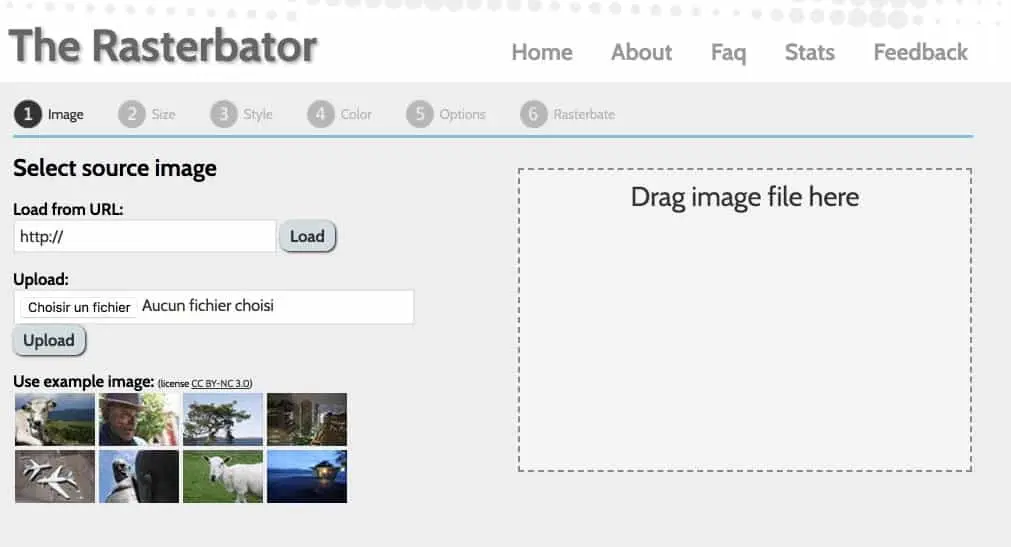
To create a poster for your class, you can use recent and great creative tools like Canva or PixTeller. But these tools give you a file in the format of a sheet. If you want something really big, that’s another story. In short, some purists will only swear by Rasterbator.
It is one of those timeless sites that continues to have real fans, followers of a service that offers something to create beautiful posters for free or almost free.
The Rasterbator allows any image to be enlarged into a poster that can be up to 20 metres in size. A source image that the tool will cut into small printable squares on any desktop printer. The quality of the final poster will of course depend on your paper, your … printer and your ability to recompose the puzzle and paste the pieces of images together.
A word for those who would seek to install it on their post. There is an old standalone Windows version, but the developers themselves warn that it is no longer being tracked or updated. Worse: it can be found on freeware sites that accompany it with their own installer, with toolbars and adware as a gift. Go your way. The online version does exactly the same job.

I recently went back to check that nothing had moved. The interface has not changed by an inch, and it is rather reassuring. Six numbered steps, no account, no installation.
- First you need to choose the digital image that you want to turn into a poster. You can upload it from your computer or by providing a URL if it is online.
- Then you have to choose the number of sheets of paper which you want to use in width or height. A preview of the image cut into A4 sheets will allow you to see the final size of your poster.
- Decide on the white margin around your final image. This is called lost funds or lost whites. Our small office printers do not know how to print from board to board.
- You can then use one of the filters offered by the application. You can play on the pixelation or turn it into points of different sizes. You can still work the tone of the general color. Once again, the preview of the cut and processed image will allow you to see the result before printing.
- Once your image is ready, all you have to do is print. Rasterbator produces a quality PDF that you can print or donate to print. When you get your outputs back, you can start assembling. The tool has everything in place to help you. Each sheet is numbered and has cutting lines to help you assemble the puzzle.
Two things I did not report at the time. At the last stage, the site offers a payment: it is totally optional and does not change the result. You can ignore it and download your poster.
And a good point for school use: your image is never sent to their servers, everything is calculated in your browser. The only exception is the ‘load from URL’ option, which passes through their server without keeping anything. If you make students work on photos taken in class, it is the kind of detail that counts.

Table of Contents
Make a success of your impression: the settings that change everything
This is where things usually go wrong. We print, we assemble, and the poster is three centimeters less than expected or the fittings do not fall just. A few things to know.
- Print to 100 %, never ‘adjust to the page’. This is the number one error: it shifts all the pages between them. In the print options, look for ‘real size’.
- Ordinary 80 g paper is enough for a temporary poster. For something that needs to be on the wall all year round, go up to 100 or 120 g: paper gondola less.
- Activate overlap in addition to the cutting lines. The cutting does not need to be perfect. With scissor students, believe me, it matters.
- Assemble flat, face against table, and tap on the back. Each sheet bears a position mark (A1, B2, C3, as in a spreadsheet), which makes assembly reliable even by CM1.
What can be done in class
The poster for the school party or the end-of-year show, of course. But also a large-format chronological frieze that is completed throughout the year, an enlarged map for a collective work in geography, a portrait of an author at the back of the room, a scientific diagram large enough to be pointed at by several.
And cutting-assembly is worth the detour in itself. In primary school, reconstructing an image from forty numbered sheets is a real spatial tracking activity. Students see nothing at all as long as it is spread out on the ground. The moment when the image appears, when you step back a few steps, works every time.
More modern alternatives to Rasterbator
Since 2019, several clones have appeared. They all do the same thing, but with a newer interface and sometimes a few more options.
- Rasterbator.org : The most complete in my opinion. Eleven styles of frame, an interface available in French, and side tools rather well seen, including a calculator that tells you how many sheets it takes to cover a given wall. The processing is done in the browser.
- Rasterbator.app : more stripped down, in English, with ready-to-use templates and the A3 format in addition.
Be careful though: these sites are not affiliated with the original Rasterbator, they say so themselves in the footer. They use the name because it is highly sought after. It doesn't make them suspicious, but you might as well know it before advising a connection to colleagues.
And from a tablet?
The Rasterbator FAQ is clear on this: no official application, and no provision for it. The site works on a tablet, but a large image can saturate the memory of the device, the calculation being done locally.
If you work mostly on a tablet, Docuslice is a lead. Available on Android, iOS and in web version, it cuts images, PDF and SVG into printable tiles, with cutting marks and adjustable margins. There are two reservations, and they include: the app is free but funded by advertising, with paid one-time-purchase formulas to remove it, and it does not make a point frame like Rasterbator. It is pure enlargement. Honestly, I did not keep it long enough to judge its stability on a school tablet park.
A nice utility for unique and spectacular creations. Rasterbator is free, but don’t forget that your printer ink is not … Have fun and don’t forget to send me your creations in your classrooms.
Link: Rasterbator

 English