Last updated on 12 May 2026
“I would like to make videos for my students, but I don’t have time to learn how to edit …”
How many teachers still find themselves blocked by this received idea? Good news: today, create a Pedagogical Video Capsule does not require complex technical skills or working hours.
In this article, I propose 5 tools that can really be used in the classroom, tested with a single requirement: make it simple, fast, and useful pedagogically.
👉 “What you will not see in this article”. You will not find here:
- Complex software like Premiere Pro
- “magical” tools, but not usable in the classroom
- nor lengthening lists
Only tools tested with a simple constraint: be usable in less than 15 minutes by a teacher.

Why create educational videos?
The video captures attention where a text document can land. It promotes the pedagogical differentiation, supports the inverted class and encourages students’ autonomy. A MIT CSAIL study conducted on more than 6.9 million video sessions shows that short videos (less than 6 minutes) generate significantly higher engagement and completion than long formats.
Another asset that is often underestimated: one video looks at itself at its own pace, paused and rewinded. For students in difficulty, it is a real safety net.
The main brake? The perceived complexity of assembly tools. This is precisely what the 5 tools below solve, without painful learning.
Loom. Instant screen recording
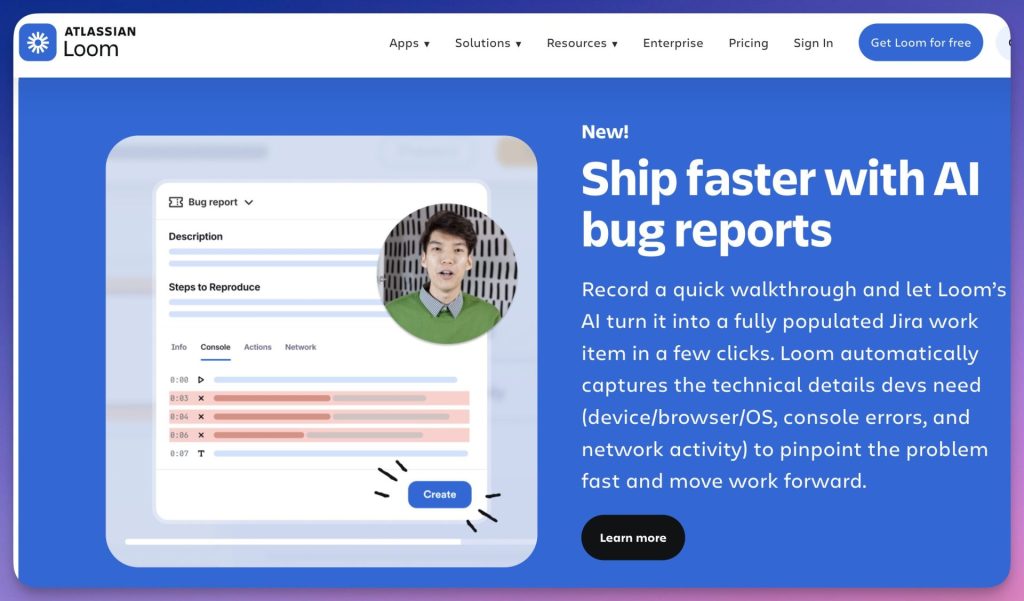
Loom is theVideo Teacher Tool I was really surprised by its simplicity and the quality of its renderings. In less than two minutes, you record your screen and face (or not) simultaneously, and a sharing link is automatically generated at the end. No assembly, no tedious export: The video is online, almost in real time. The result is clean, professional, and students can even leave comments directly on the video.
The free version allows you to create up to 25 videos of 5 minutes each, which is more than enough to get started. And if you want to use it more intensively in class, Loom offers a Free and Extended Education Plan for verified teachers, without these limits.
Concrete pedagogical uses
- Primary: Record a video instruction for a workshop in autonomy.
- Secondary: Propose a correction of duty commented and illustrated.
- Superior: Make a personalized return on a student work.
Loom has been owned by Atlassian since November 2023: the data is hosted in the United States, a point to keep in mind depending on the context of your institution.
🔗 loom.com
If you're also looking to equip your students to memorize more effectively, take a look at CardsMemory, a flashcard tool with spaced repetition designed for school use.
Canva. Effortless video presentation
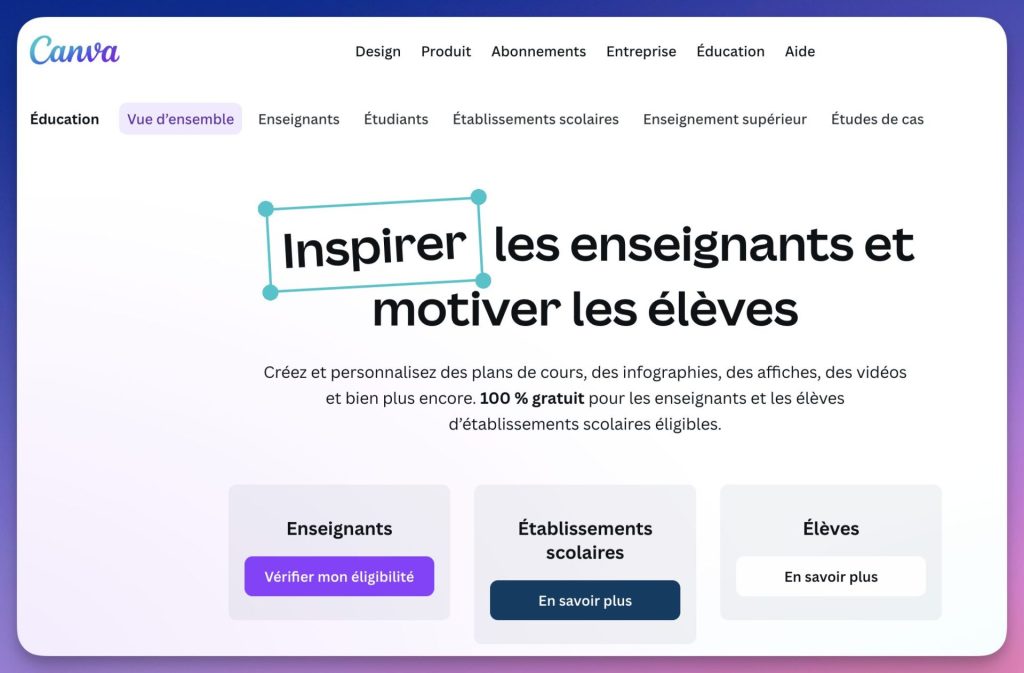
Canva, we know him for creation of posters and presentations. But its video functionality is probably the most underestimated of the platform. Hundreds of ready-to-use models, animated text, royalty-free music, a voice-over recordable directly in the interface: It's all there. And exporting to MP4 or sharing via link is done in two clicks. What convinced me was the free Education version, which was really comprehensive for use in the classroom.
Use which makes sense as a matter of priority: Have a summary video produced by the students themselves at the end of a sequence. Canva is intuitive enough for a college student to manage on their own, and the rendering is always clean. The advanced features (deletion of the background, premium media) remain behind the payee, but for school use, the free version largely covers the essentials.
To prolong the process, Caramel turns your course documents into interactive H5P activities in just a few clicks.
Adobe Express. The accessible animated video
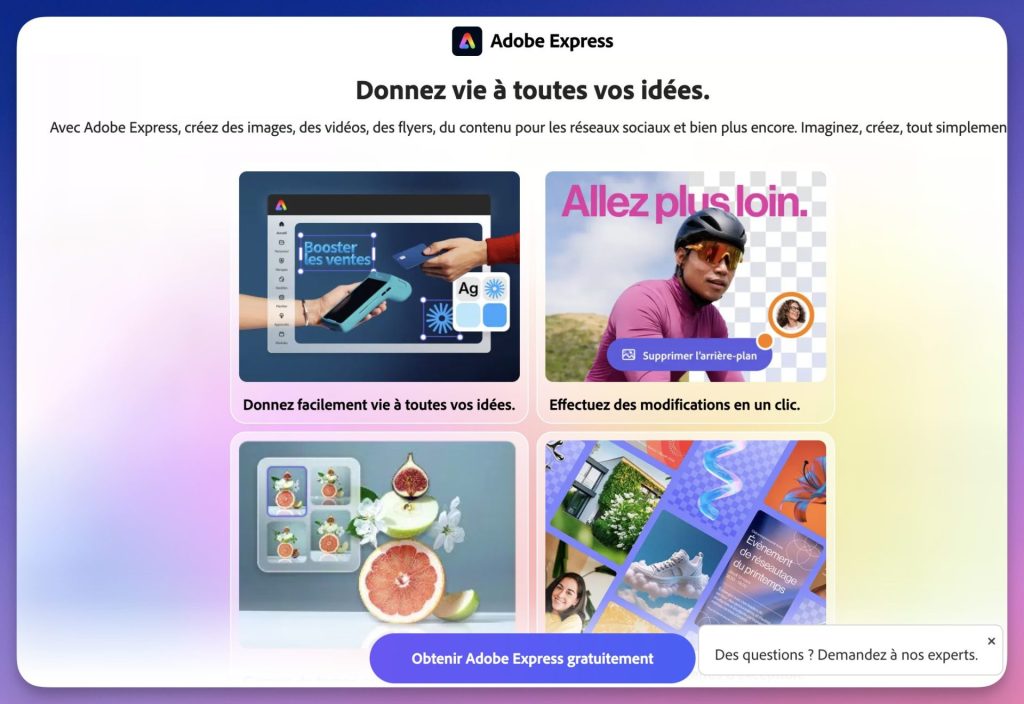
Adobe Express (formerly Adobe Spark) surprised me with the visual quality of its renderings for a free tool. We choose a thematic model, we drag his photos and icons, we add free music, and the video is ready. No head start on the layout: the models are already designed to fit on the screen. What I particularly appreciate: the free version does not require watermarks, Unlike many competitors.
A good use case in class: one oral presentation in video format, where the student structures his or her speech on 5 to 8 animated slides. Adobe Express naturally imposes a discipline of synthesis, impossible to put everything, so we prioritize. The only real constraint to watch: the storage (5 GB) is linked to the Adobe account, to be verified according to the institution’s policy.
Animaker. Educational animations in a few clicks
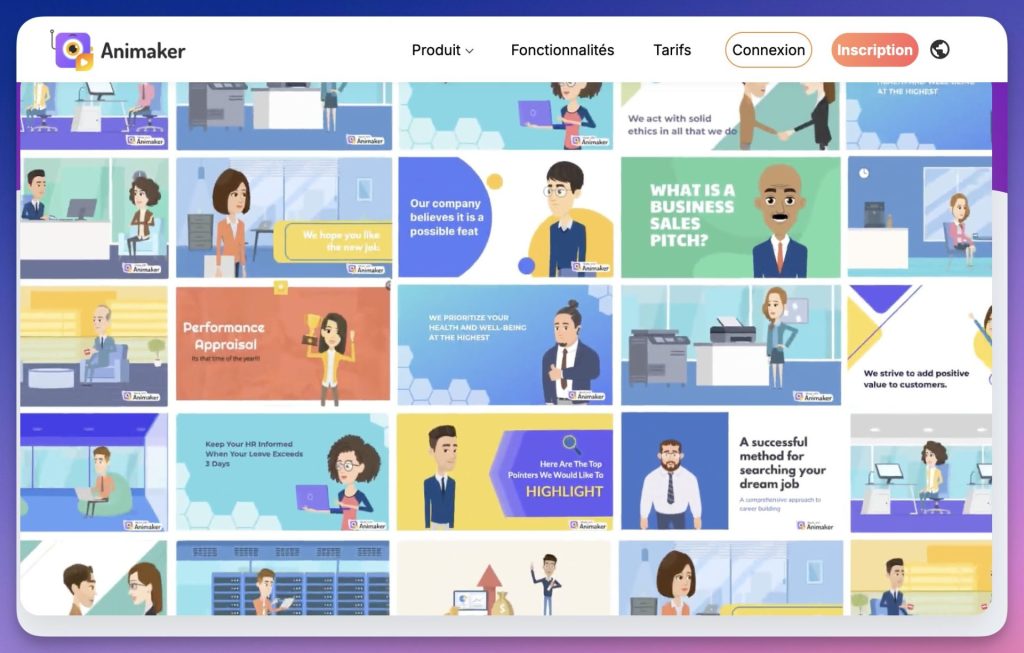
Animaker specializes in creating animated videos with characters and sets. Its step-by-step guided interface makes it particularly accessible to teachers who have never done video editing.
💡 It is the ideal tool if you want to produce something visually appealing without going through complex software. The cartoon effect immediately catches the attention of young students.
Its strong point: the automatic synchronization between recorded voice and character animations. We talk, the character moves. For a teacher who wants to create an introductory capsule on a theme in primary school (the water cycle, children’s rights, the life of an insect): it is dauntingly effective and students immediately catch on.
The export in HD without watermark requires a subscription (from 15 $/month). The free version is enough for testing or punctual use. The servers are based in the United States: avoid including students’ personal data.
Clipchamp. The Windows native editor and Microsoft 365
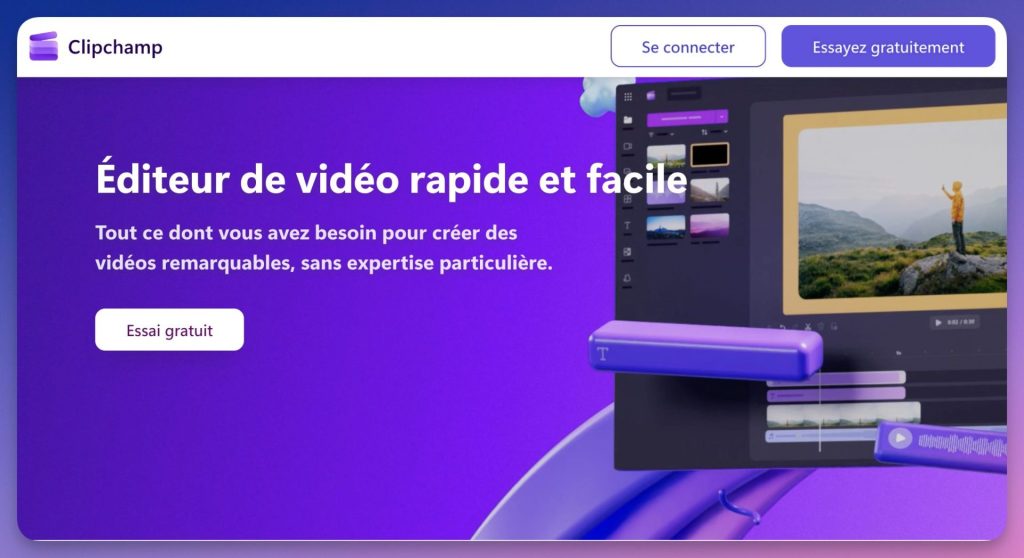
Integrated directly with Windows 11 and Microsoft 365, Clipchamp is the ideal tool for establishments equipped with Microsoft environments.
It is one of the most comprehensive tools on this list, and it is free without restriction. Editing on timeline, royalty-free music library, sound effects, AI-generated automatic subtitles, a feature that I would systematically use for accessibility. Exporting to watermark-free MP4 and native integration with OneDrive make it the logical choice for all establishments under Microsoft 365.
Ideal use in secondary schools: the mini-documentary or video report in a group. Clipchamp is powerful enough to mount a real structured project, with voiceovers and intertitles, without installing anything.
Clipchamp is integrated into the Microsoft ecosystem: the data is subject to the terms of Microsoft 365. For institutions already under Microsoft Education contract, this is an asset and not a constraint. Please note: Clipchamp also works on Mac and Linux via web browser, not only on Windows.
🎯 The Real Criterion for Choosing a Video Tool
The right tool is not the most comprehensive. This is the one you will actually use.
👉 In practice:
- if you are starting → Loom or Canva
- if you have students produced → Canva or Adobe Express
- if you want a structured project → Clipchamp
Simplicity is better than perfection.
Quick comparison of the 5 tools for creating a pedagogical video:
| Tool | Ideal for … | Level | Free of charge? |
|---|---|---|---|
| Loom | Quick Screen Recording | Secondary / Superior | ✅ Yes (limited) |
| Canva | Animated video presentation | All levels | ✅ Yes (education) |
| Adobe Express | Professional Illustrated Video | All levels | ✅ Yes (without watermark) |
| Animaker | Pedagogical animation | Primary / Secondary | ⚠ Free Filigree |
| Clipchamp | Full video editing | Secondary / Superior | ✅ Yes (without watermark) |
What to remember
💡 The 5 key points to keep in mind:
- Loom : tool 1 for video instructions and corrections.
- Canva : the most versatile, perfect to start with.
- Adobe Express : ideal for visually neat results.
- Animaker : the best choice for pedagogical animation.
- Clipchamp : The most complete and free, perfect on Windows.
You don't have to control everything. If you want advice: Start with Loom or Canva, two tools with immediate control, and gradually develop your practice. The pedagogical video is quickly tamed, and the students love it.

 English