Last updated on 28 February 2024
How to use videos as a course support? How to insert a good dose of interactivity in your videos to get your students out of the mere role of passive spectator. Here is a selection of five tools to create interactive videos for your classes. Not all are free but all offer at least a free test period.
Table of Contents
EdPuzzle
This tool is my favorite in this little chart. Very easy to use, EDpuzzle allows you to use videos on platforms such as YouTube or Vimeo or even a video on your own computer. You will then be able to record your own voice on the video or in the form of audio notes. You can also add quizzes that will allow you to survey your students and assess their level of monitoring and understanding. Practical.
EdPuzzle is free. Johann Nallet has made a particularly clear tutorial below:
Link: EdPuzzle
Mindstamp
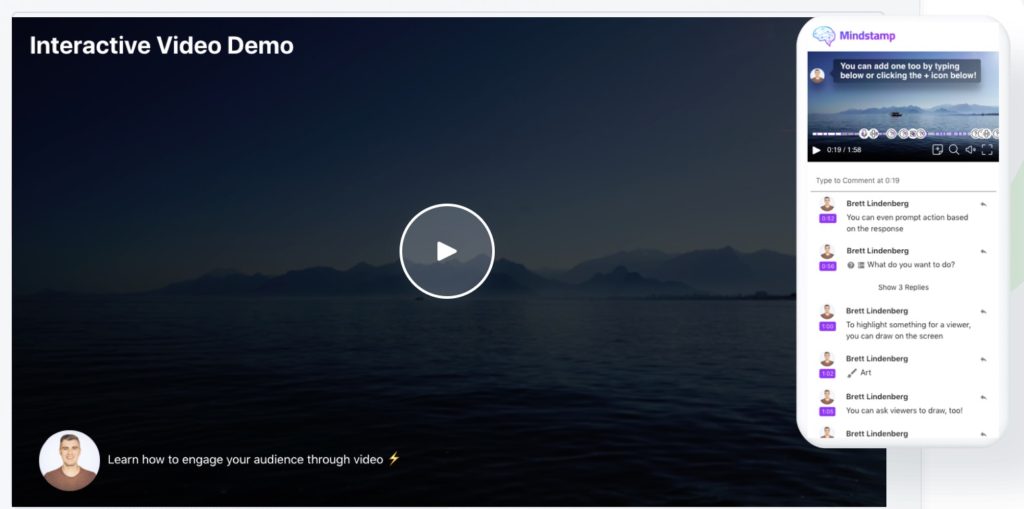
Mindstamp will allow you to easily insert moments of interactivity into any video. You can insert additional notes at certain times or voice annotations. You will especially be able to insert at the end of the broadcast an online questionnaire allowing you to verify that the concepts have been understood. Mindstamp limits the number of videos in the free version to a small handful. Enough for a small test.
Link: Mindstamp
TubeQuizard
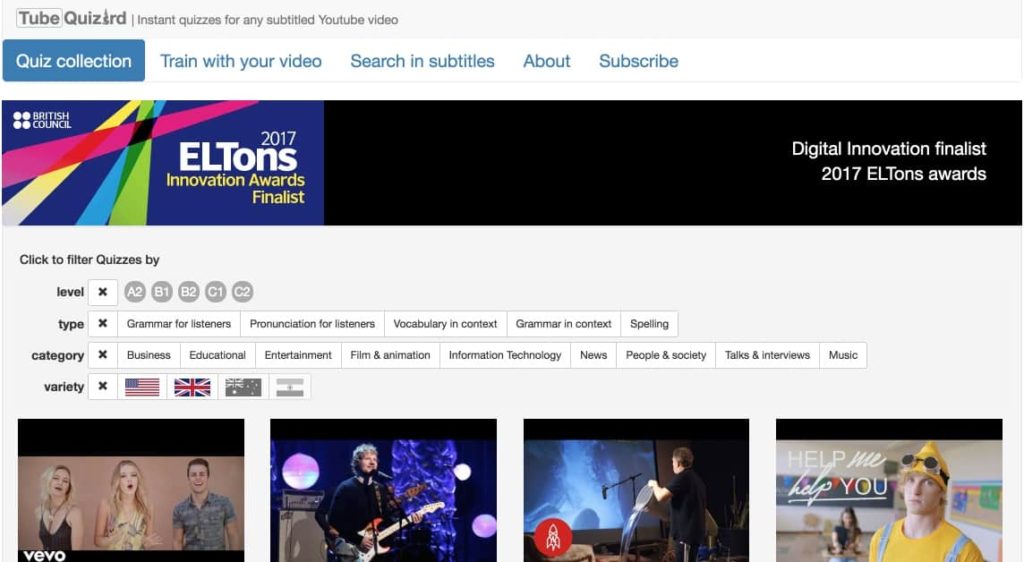
TubeQuizard occupies a place a little apart. This tool aims to learn English through interactive video clips. TubeQuizard offers an online player that presents the subtitles of any video available on YouTube in the form of a holed text. The student sees and especially listens to the video and at the same time responds to the quiz by filling in the missing words or expressions.
Link: TubeQuizzard
Timelinely

Other interesting online tool to make your videos interactive class. Timelinely allows foradd comments to a video before sharing it. Rather practical to explain, comment on or underline the importance of a particular passage from a video to your students. Tilelinely offers simple options and a quick grip. You just have to click on a kind of timeline of the video to insert your comment or annotation. You can insert text, a URL, an image or an animated GIF.
Link: Timelinely
Flexclip

FlexClip is another great tool for creating interactive videos for your classes. With FlexClip, you can easily incorporate various interactive elements into your videos to effectively engage your students. Here's how FlexClip can improve your course videos:
- Interactive questionnaires: FlexClip allows you to effortlessly integrate questionnaires into your videos. You can add multiple-choice questions, True/False questions, or open-ended questions at specific times to test your students' understanding.
- Voice-over recording: Like EdPuzzle, FlexClip allows you to record your voice directly to the video or add audio notes to provide additional explanations or comments.
- Annotations and comments: With FlexClip, you can annotate important points in your videos or leave comments to provide more context or clarification to your students.
- Customizable templates: FlexClip offers a wide range of customizable models suitable for educational purposes. You can choose from various themes and styles to easily create attractive and professional course videos.
Link: FlexClip
Feel free to complete this list in the comments.
 English
Hello Payposit, to integrate questions into a video