Last updated on 7 September 2026
A signed certificate to be returned to the secretariat. A proof to be attached to your travel expenses entry. The exit authorisation that you have finally recovered, crumpled at the bottom of a binder. And not the shadow of a scanner at your fingertips.
You could take a picture. Except that a cross-picture, with the shadow of your hand on the left corner and a piece of table that protrudes, is not a document. It is a photo. And we'll send it back to you.
In short, you need a real application to scan a document. The good news is that the app that can do this is probably already installed on your phone. And you don't know it.
This article was completely revised in August 2026. Several applications that I recommended here have disappeared or changed business model. I explain at the end of the article which ones, and why I removed them.

Table of Contents
Start with what you already have
It is the reflex that saves the most time. Before you install anything, look at what your phone already knows how to do. In the majority of cases, this is enough, it is free, there is no additional account to create and no advertising.
Notes, on iPhone and iPad
The function has been there for years, hidden in an app that everyone has and nobody associates with digitalisation.
Where to find it: open the Notes app, create a note, tap the camera icon above the keyboard, then choose ‘Scan documents’. Frame the sheet, the device triggers on its own as soon as it recognises the edges. Chain the pages, then tap "Save". You get a multipage PDF.
What I like: zero installation, zero account, zero advertising. Contour detection is excellent. Sharing is done directly by email or to any application. And it works exactly the same on iPad, which is more important than we think, I come back to it below.
What I like less: classification. Your scans live inside notes, which quickly becomes a mess if you produce a lot of them. For regular use, it is better to export the PDF elsewhere just after.
Google Drive, on Android and iPhone
Long reserved for Android, the feature is now also available on iPhone. However, it does not exist in the web version of Drive, only in the mobile application.
Where to find it: open the Google Drive app, tap the ‘+’ button at the bottom right, then ‘Scan’. The document goes directly to the Drive folder of your choice, in PDF format.
What I like: immediate classification. The file lands where it needs to be, in the right folder, without further manipulation. For someone who scans their credentials every month in the same place, this is the shortest route.
What I like less: You need a Google account, and the file goes to the cloud by default. This is not neutral for some documents, I come back to it as well.
Files by Google, on Android
Google’s file manager now includes a scanner, and many Android users ignore it.
Where to find it: open Files by Google, a ‘Scan’ button floats at the bottom right of the screen. Tap it, aim for the document, validate with "OK". Before validating, you can crop, rotate, apply a filter or clean the image. The documents are saved in PDF in a "Scanned" folder, stored in your downloads.
What I like: the backup is local. The file stays on the device, you then decide what you do with it. Simple, fast, without detour by an online service.
What I like less: functions remain basic. No text recognition, no extensive organisation. It is an effective troubleshooting, not a document management tool.
When you need more to scan your teaching materials
Two cases justify installing a dedicated application. The first is the need for text recognition, to obtain a PDF in which you can search for a word or copy a paragraph. The second is the volume, when you scan enough to want a real ranking.
Adobe Scan, for text recognition
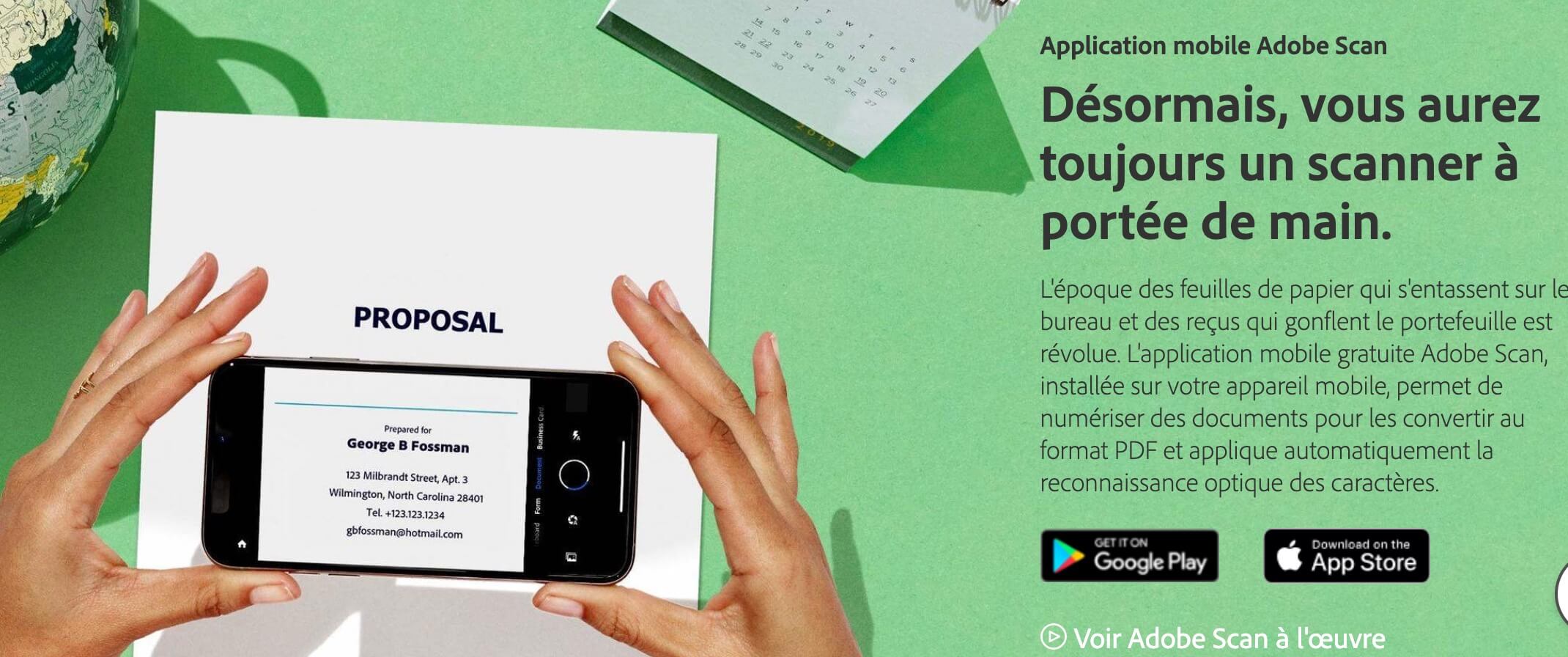
This is Adobe’s know-how on PDF, in your pocket. I had already discussed this in detail in this article about Adobe Scan.
Where to find it: the application opens directly in capture mode. It detects the document and triggers alone. Text recognition applies automatically at the time of saving the PDF.
What I like: edge detection is the best of the lot, perspective straightening is clean, and the OCR works very well in French. A PDF from Adobe Scan is searchable, which changes everything when you look for a specific piece three months later.
What I like less: You need an Adobe account, and especially the border between free and paid has shifted. Several functions that were of interest to the application went behind a subscription. The basic scan and OCR remain accessible, but check what is included before building your organisation around it.
If your only need is to extract text from an image, without going through a mobile app, there is more direct free OCR tools.
Genius Scan, to work offline

This is theDocument Scanning Application which I recommend to those who do not want their documents to pass through an online service.
Where to find it: the application opens on the camera. You scan, you validate, the PDF is created locally. No account is requested for basic use.
What I like: the free version works offline, without advertising, and does not apply watermarks to your documents. On three points, it is already better than most apps that advertise themselves as free.
What I like less: The economic model has changed. Text recognition, automatic exports and cloud functions have switched to an annual subscription, and the one-time purchase that existed before has disappeared. For simple scanning, the free version is more than enough. For the OCR, it will be necessary to pay or go elsewhere.
On a tablet, a single device for students who need it
A reader asked me this question a few years ago, and I never answered it correctly. He put it down for his dys students: why use a smartphone, when a tablet also has a camera, and it is already used to annotate PDFs and take notes in progress?
He was right, and the answer is one line. All the solutions mentioned here work on tablets. Notes and Files on iPad, Google Drive on iPad as on Android tablet, Files by Google on Android tablet, and the two dedicated apps on both systems.
Interest is not technical, it is cognitive. A student who has only one device to carry, load and control has less mental load, less risk of breakage and less risk of forgetting. Scanning a document, annotating it and finding it in the same environment, without transferring between two devices, is a real simplification. For a dys student, an allophone or simply a disorganized student, it can be seen right away.
Five tips for a really clean scan
The quality of the scan depends much less on the application than on the previous 30 seconds. Here's what really changes the outcome.
- Place the sheet flat on a contrasting surface. A white sheet on a clear table, the application does not find the edges.
- Chase the shadows. Don't get between the light and the document. This is the number one cause of unreadable scans.
- Hold the device parallel to the sheet. Automatic straightening corrects a lot, but not everything.
- Check the four corners detected before validating. A misplaced corner and a line of text disappears.
- Add all pages before saving, to obtain a single PDF rather than six separate files.
For an administrative document, prefer the black and white filter or high contrast. It significantly lightens the file, which counts when the filing platform imposes a weight limit. But always reread the result: signatures, stamps and fine print suffer first. If the buffer becomes a black spot, return to the color filter.
Last advice, the dumbest and most profitable: name the file right away. Costs_Travel_September_2026.pdf save you 15 minutes in February. scan_0034.pdf You'll lose that much.
If the file is still too heavy, Framatoolbox allows you to compress it directly into the browser, without sending it to a server.
Where does your scan land? The question we forget
This is the point that application comparisons never address.
These tools are used to digitize your professional documents: supporting documents, certificates, letters, forms. For these, no problem.
As soon as a document contains nominative information about students, the logic changes. It is no longer a question of tool preference, but of framework: the processing of pupils’ data is covered by tools deployed or agreed by the institution, not by a personal choice. A class file scanned and deposited in a consumer cloud, even for convenience, comes out of this frame.
Concretely, two reflexes are enough. Look at where your application saves by default, on-premises or in the cloud, and be aware that this is not always editable.
An example that illustrates the problem well: The scanner built into OneDrive, which Microsoft now recommends, does not allow local recording. Everything goes to the cloud, with no alternative.
Avoid: Microsoft Lens is over
It must be said clearly, because almost all French articles on the subject still recommend it.
Microsoft Lens, formerly Office Lens, no longer exists. The app was removed from the App Store and Play Store in early 2026, and the creation of new scans has been disabled since 9 March 2026. If you still have it on your phone, you can check your old scans, nothing more.
Microsoft sends its users back to the OneDrive Integrated Scanner. It is a solution, but not an identical replacement, in particular because of registration only in the cloud referred to above. If you're looking for the same comfort as Lens, look at your phone's native scan or Genius Scan instead.
What disappeared from this article
This article recommended five applications. Three are no longer included, and it seems to me normal to explain why rather than to make them disappear discreetly.
Scannable, the Evernote app, switched to an expensive annual subscription and has not received an update since the end of 2024. The fast scan without an account that was all his interest now passes through an Evernote connection. It no longer has a place in a free selection.
Scanner Pro is a good app, but it pays off. It should never have appeared in an article entitled ‘free apps’, and that is an error that I correct.
CamScanner It still works, but the free version has taken care of advertising and limitations, and I prefer today to focus on more sober solutions for administrative documents.
So which application can scan a document to choose?
If you scan three documents per quarter, do not install anything. Notes on iPhone, Google Drive or Files by Google on Android do the job, and you don’t have one more account to manage.
If you need to find a word in a scanned document, Adobe Scan remains the reference on the OCR, accepting the Adobe account.
If your documents do not have to leave your device, Genius Scan is the right choice, as long as you are satisfied with the scan without text recognition.
And if you then have to sign the document rather than just send it, I have presented here a free and free tool to sign and get a PDF signed.
To test, then, starting with what you already have.

 English
Hello,
and no mention of Google's Photscan which does superbly the job for photos but which also serves for those without a doc?
Have a good day
Good evening, I see you include smartphone-based solutions for scanning documents. They must then be transferred to the computer.
Could you present integrated solutions in the Android or iPad tablet?
The advantage of tablets is that they also have a camera, so everything can be done with them (scans and PDF annotations and note-taking for lessons, in both languages and science). Without also needing a smartphone or a mouse/bar scanner.
Not only does the DYS student have less material to carry but it simplifies their cognitive effort: a single tool. Easier to tame and easier to use. There is also a reduced risk of breakage or loss.