Last updated on 12 May 2026
How to properly calibrate a text? How do you count the words or signs of a document you are writing? While most word processors offer these basic functions, there are tools that can go a step further by giving you a whole range of information about the texts you write.
Here are three. Three tools for counting the number of words in a text.
Table of Contents
WordCounter for Google Docs.
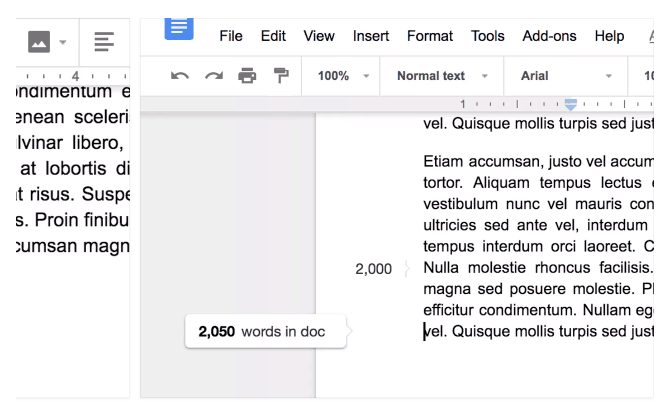
If you use Google's word processor, you should be interested in this little utility. This is a small extension that will display the number of words in your text in real time while you write it. Practical. The extension also installs a marker every 500 words to keep you motivated.
Link: WordCounter for Google Docs
WordCounter.
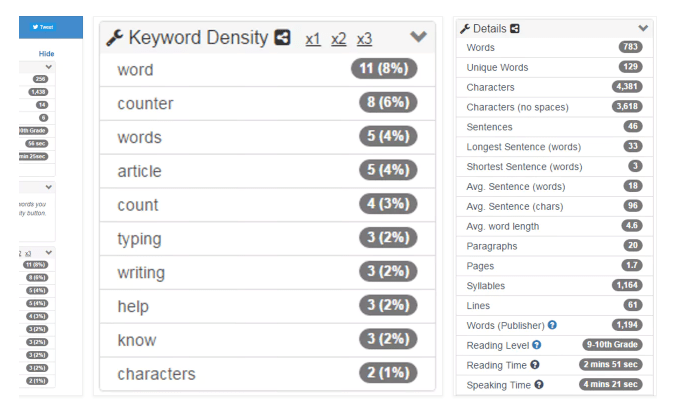
Another tool for counting words in a text, but one that does much more than that. I introduced you this Text Analyzer right here some time ago. Simply write your text on the built-in word processor or copy and paste the text you want to analyse.
WordCounter immediately shows you the number of words, but also the number of characters, sentences, paragraphs … You will also discover the density of the most used words or an estimated time needed to read the text.
Link: WordCounter
Measure.

As the name suggests, this third tool does only one thing, but it does it well. It measures texts on the fly. This is again an extension for chromium. Once installed on your browser, simply highlight one or more sentences of a text and immediately Measure shows you the number of words that compose it or more precisely the number of characters. Simple and practical.
Link: Measure
 English