Last updated on 25 May 2026
How to make a screenshot easily? Let me give you a brief overview of the best tools for simply capturing screenshots whether via photos or videos. Convenient to better understand remote manipulation on the web in particular.
If you are looking for a free screenshot tool, you have come to the right place. Here is an up-to-date list of 15 screenshot tools and software for your computer or browser. Taking a screenshot is very useful for illustrating a guideline or course.
If you know of other tools to make a screenshot or a video screenshot that you use, send me an email to fidel.navamuel @toolstice.com. This will allow me to enrich all these resources and share them with as many people as possible. Thank you.
Table of Contents
MonoSnap
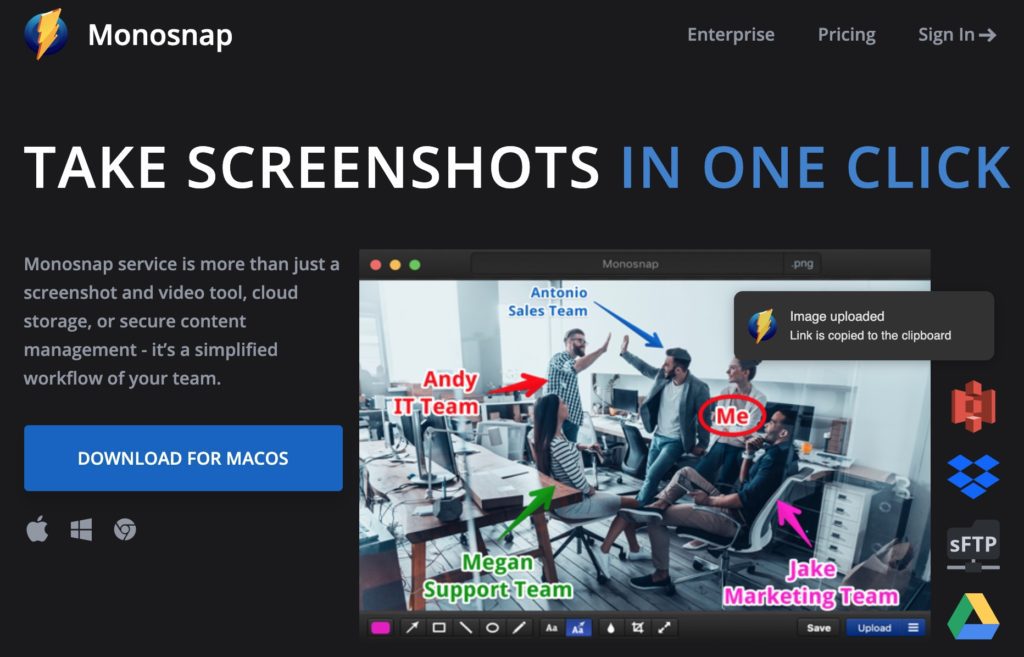
This is one of my favorite tools. MonoSnap installs on Mac or Pac as well as via an extension for the Chrome browser. The tool makes it very easy to create a snapshot of all or part of your screen. Just select what you want to keep with the end of the mouse. MonoSnap generates still images, videos but also animated gifs. You can annotate your images directly in the tool and add arrows, text, icons … Monosnap offers a fully functional free version.
Link: MonoSnap
Screencastify

Screencastify allows you to make a video capture of what is happening on your screen. The tool is an extension for Chrome. Once installed, you will be able to simply make video capsules to show a manipulation, comment on an online resource, give a complete course remotely. Videos can be saved directly to Google Drive or shared by email. The service also offers a simple built-in editing and editing tool that will allow you to easily perform a quick post-production. In its free version, Screencstify makes it possible to record video capsules lasting 10 minutes.
Link: Screencastify
Droplr
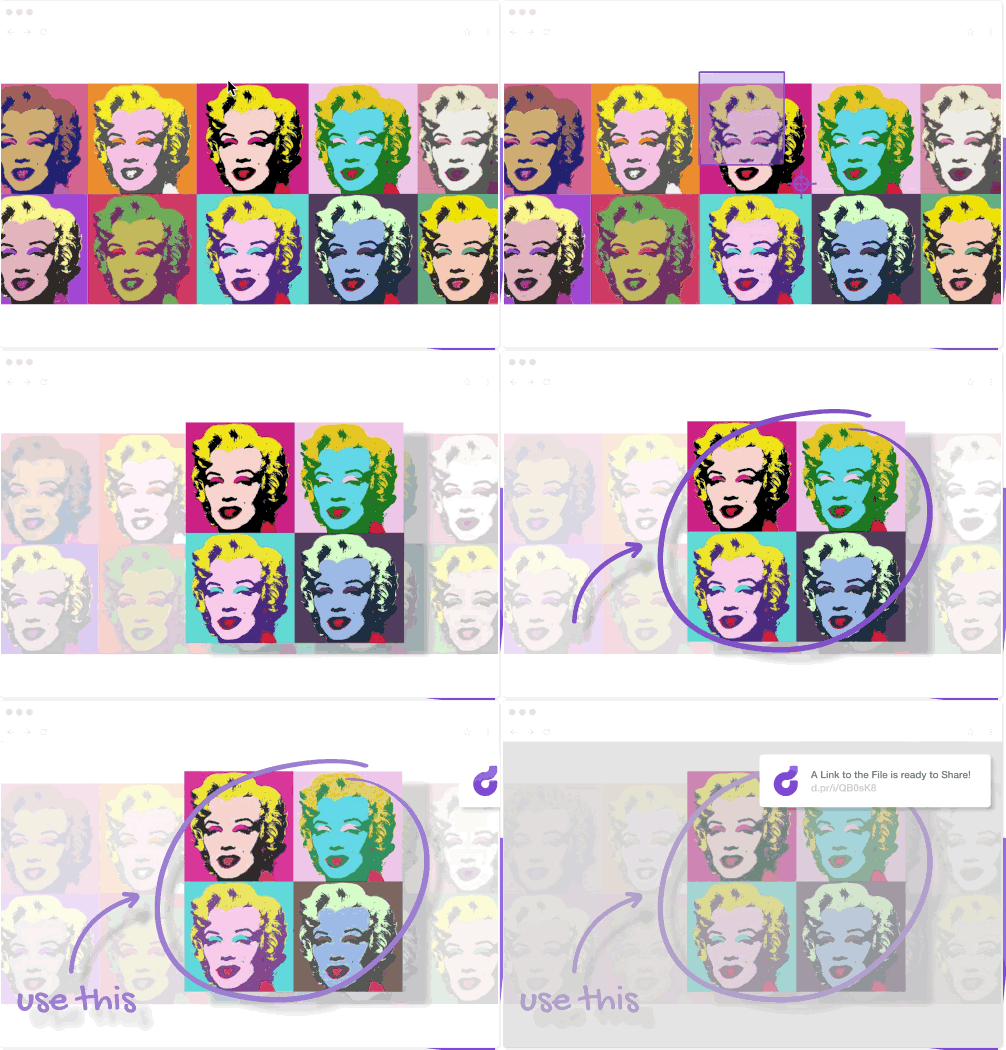
Another high-quality tool. A professional tool for making screenshots and screencasts easily. Still or animated images in the form of videos that will allow you to illustrate your courses, tutorials or presentations and set aside illustrations for later use. Droplr keeps the images and allows you to create a sort of bank of images and videos of personal illustration.
Link: Droplr
Nimbus Capture
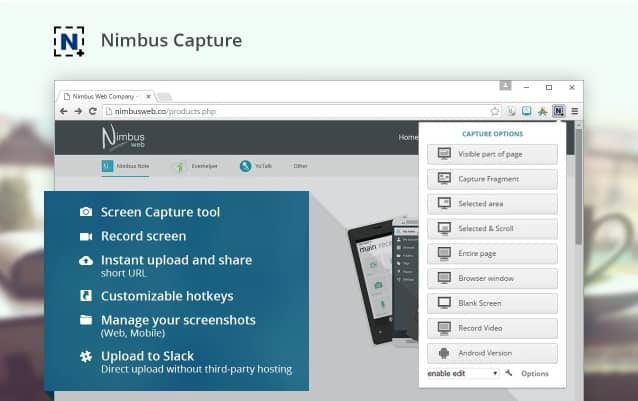
Nimbus has been around for a long time and continues to do good and loyal service. It is installed on Chrome but also on Firefox. You can also install it on PC and Android. It allows you to take screenshots with a single click. You can take a snapshot of the entire screen, an area of the screen, the visible part … A built-in editor then allows you to annotate or complete the screenshot taken. You can crop, draw, blur part of the image, insert shapes or text before saving it.
Link: Nimbus Screenshot
Record Screen

If you like simplicity, you'll love RecordScreen. It is indeed difficult to make it simpler. Everything happens from the home page of the site where you just have to click on the Record button! It is up to you to choose whether you want to film only the screen or if you want to insert your head as a small video thumbnail at the bottom of the screen to comment on the capture. Attention everything happens at the level of your browser. Once finished you will need to immediately download the video. If you close the browser, your capture will be lost.
Link: RecordScreen.io
FullpageScreenCapture
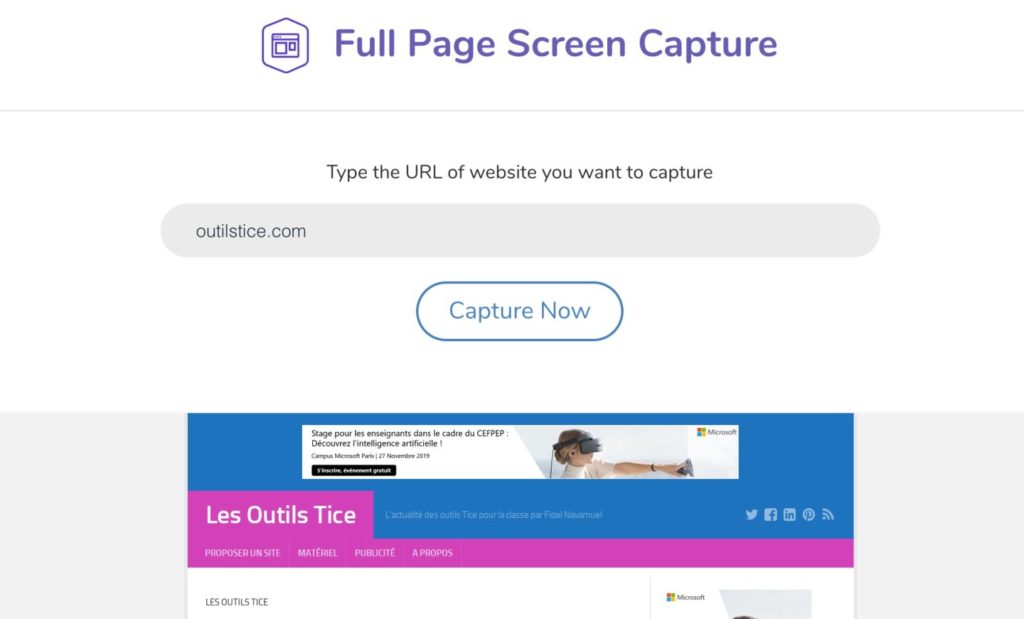
Only the page but …all the page. FullPageScreenCapture is a small online utility that does not pay for a mine but has the great advantage of being able to capture the entire page of a website regardless of its length. It is less simple than it seems. Other software can capture the visible part on the screen, FullPageScreen will copy the entire page of a site. Easy and free.
Link: FullPageScreenCapture
Obs Studio

Obs is a well-known software. It has the advantage of being free and open source and allows video recording of its screen as well as live streaming. Very powerful tool, its grip is far from obvious. The efforts to master it are then rewarded by the provision of a real multimedia editing studio. The software is downloaded on Mac and PC.
Link: Obs Studio
SnagIt

Need to capture an image or video from your screen? Snagit is another very popular solution. Snagit allows you to take screenshots and record videos, ideal for creating tutorials.
You can add text, arrows, shapes, or blur sensitive information with the built-in editor. Your captures can then be shared very easily.
Quality has a price. SangIt is a rather expensive paid software.
FastStone
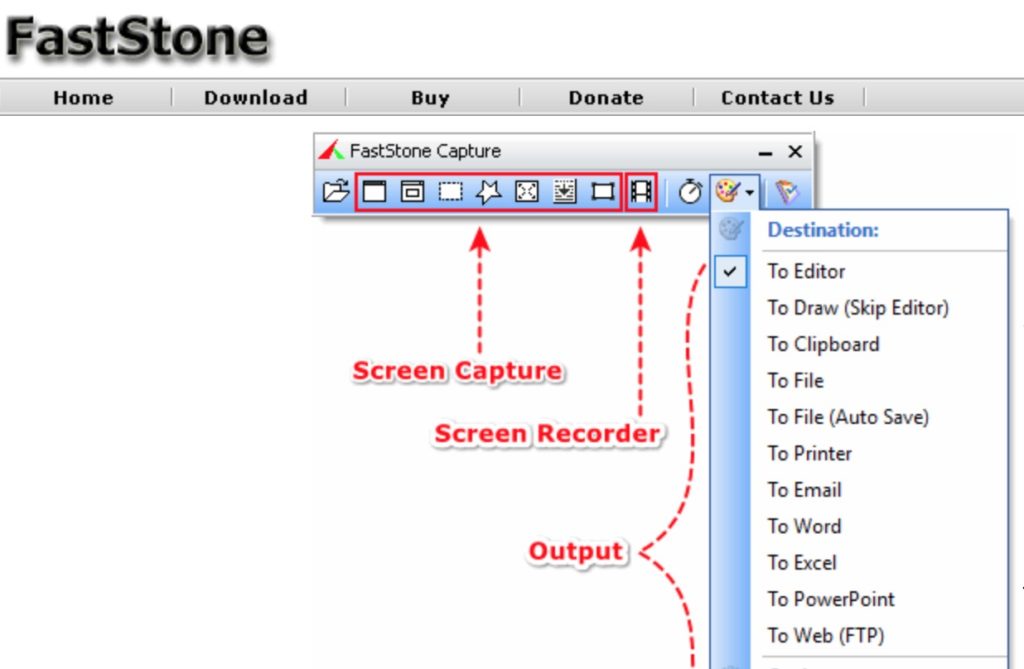
On the shareware side, take a look at Faststone Capture. A powerful, lightweight and comprehensive tool that allows you to easily capture and annotate everything on the screen, including windows, objects, menus, full screen areas, rectangular/handheld areas and even scrolling windows/webpages. You will be able to annotate screenshots before saving and/or sharing them. Please note that you must be equipped with Windows to be able to use it.
Link: Faststone Capture
GreenShot
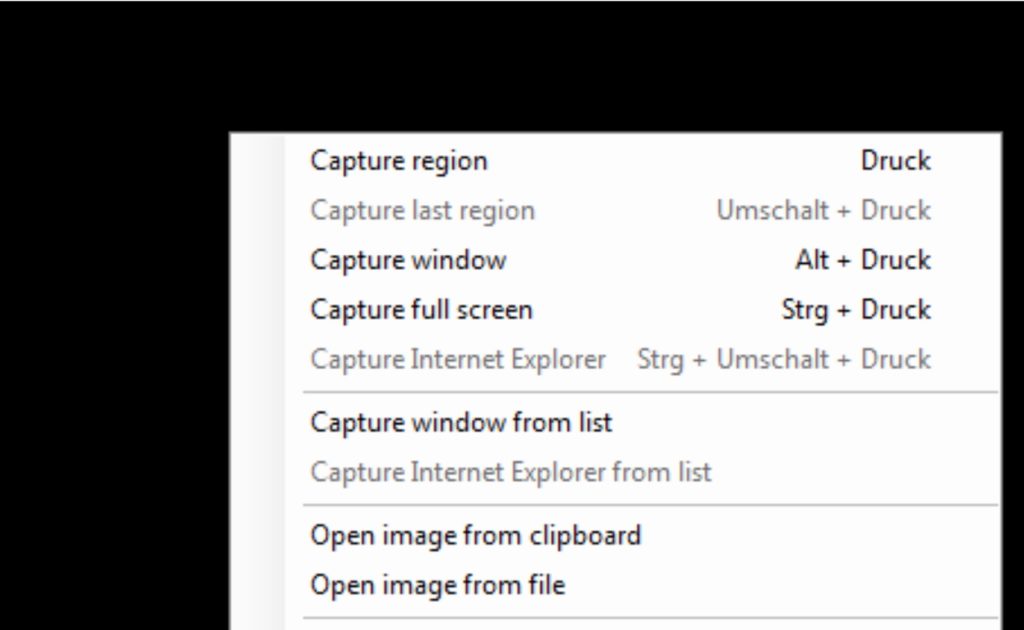
For Mac and PC, Greensho is also a great free solution for your screenshots. Once Greenshot is installed on your computer, you will be free to take several types of captures from your screen according to your needs, you will be able to annotate them with text and pictos. Greenshot offers an extremely simple but ample screen capture solution for most needs. In open access, the tool is free of charge.
Link: GreenShot
ShareX
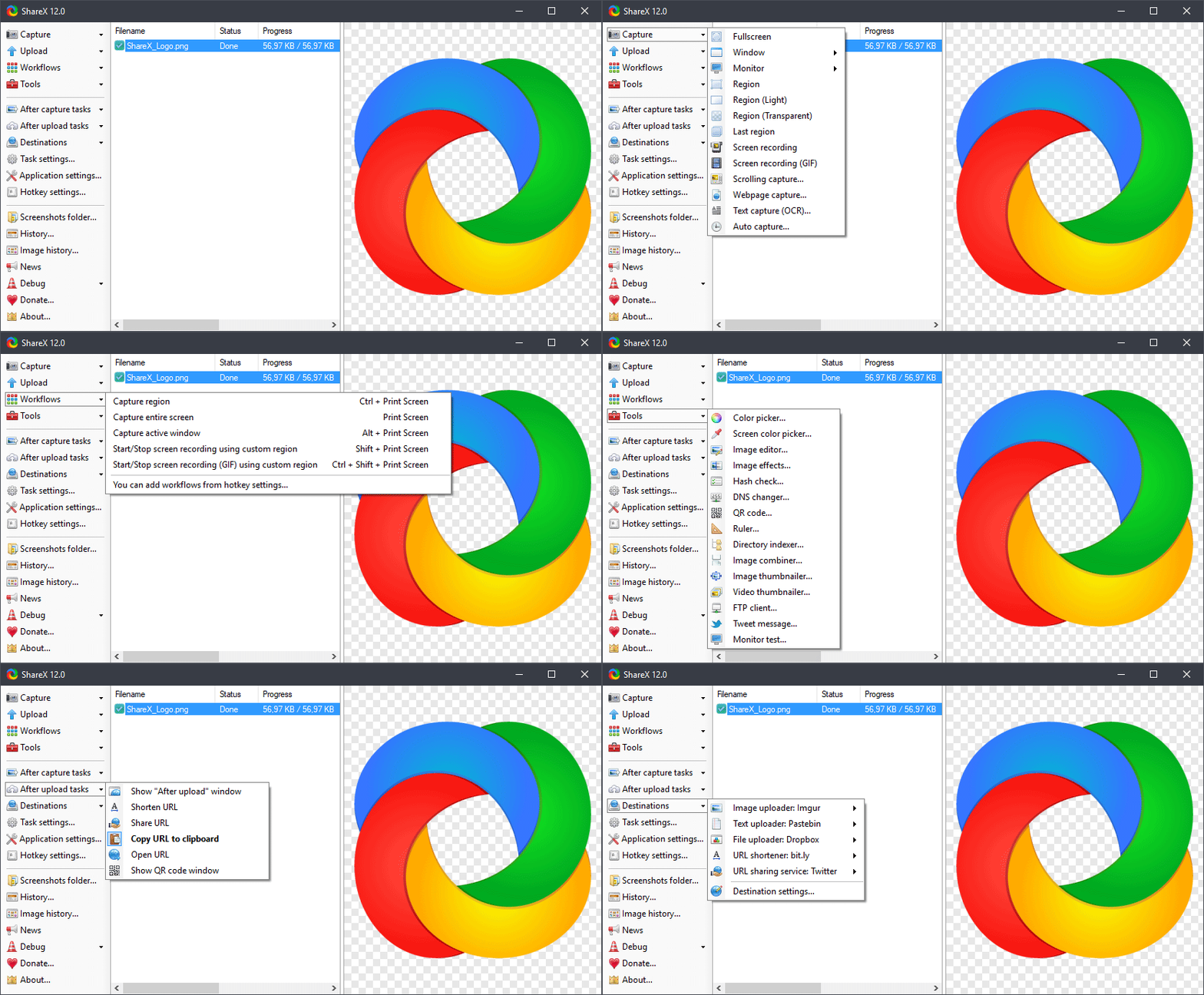
Another extremely popular tool but only works on PC. This is a shame because Share X is powerful and comprehensive with an endless list of options of all kinds. Maybe even a little too much. ShareX is free and free and only works on Windows.
Link: Share X
ScreenCast-O-Matic

Screencast-o-Matic is a recognised screenshot tool. This platform offers screen capture tools that allow you to easily create, edit and communicate with videos and images. Tools that have the great advantage of being simple and intuitive to use. Whether for create a video lesson or illustrate from a screenshot of the screen an explanation or a manipulation, Screencast-O-matic will quickly become indispensable. One of the strengths of the tool is that it integrates a real video editor. You will be able to customize your video. You can also overlay text, shapes and images. Useful for inserting, for example, automatic captions. Screencast-o-matic offers a free version, but recordings are limited to 15 minutes. The creators offer an education subscription for teachers that lifts all limits for about 2 euros per month.
Link: ScreenPal
Zappy

Zappy is a utility offered by the famous online automation service Zapier. A wonderful gift in the form of an app for Mac and PC. Very easy to use, Zappy allows to make instant screenshots, video gifs and video recordings with your reel in sticker or not. As is the case with many other tools on this list, you will be able to place coloured text, arrows or drawings in just a few clicks once you have captured them, so that you can communicate visually. Zappy offers a series of customizable keyboard shortcuts for even more speed.
Link: Zappy
Shottr
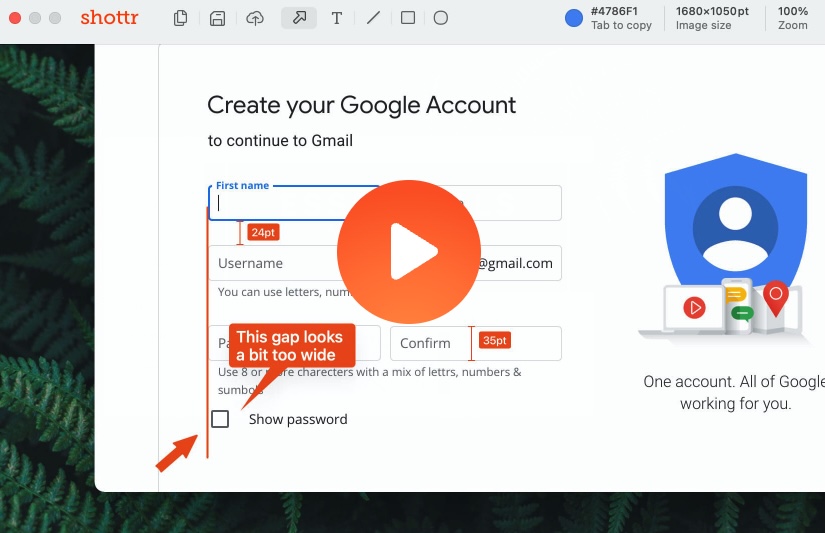
Shottrr is currently and to my knowledge only available on Mac. While waiting for his little brother for Windows, this screenshot tool widely used by webdesigners deserves its place in this selection. It offers several interesting options such as the ability to capture an entire web page. Another attractive feature is that you can select a text box from your screenshot and then ask Shottrr to OCR extract the text in the image.
Link: Shottr
Lightshot
Lightshot is another popular tool available for Windows and Mac. It allows you to capture a selected region, window or full screen, and also offers basic editing features such as adding text and shapes.
A unique feature of Lightshot can make a difference. The tool makes it possible to search for similar images online, which can be useful for research purposes.
Link: Lightshot
Tools to create screenshots embedded in your computer’s operating system
One more word to remind you that the operating system of your Mac or PC incorporates functions to create simple screenshots for your courses.
How to take screenshots on Mac?
Mac’s built-in screenshot tool is a real gem and incredibly simple to use. The shortcut “Command + Shift + 3” captures your entire screen, while “Command + Shift + 4” turns your cursor into a cross, allowing you to select a specific part of the screen to capture. Saving your screenshots is also a breeze. By default, they are saved directly to your desktop for easy access. Practical, isn’t it?
How to make a screenshot on PC?
PC users also have a capture tool. This tool allows you to take four types of screenshots: Free, Rectangular, Window and Full Screen. You can find the capture tool in the Start menu. Just type “Capture tool” in the search bar and there you are, you are ready to start capturing! Once you have taken your screenshot, you can save it, send it by email or even write to it with the capture tool.
So much for this list. Thank you for help me complete it for an exhaustive sharing.
In addition to this list, you can also take a look at these three free OCR tools This allows text to be extracted from an image.
 English
Good morning! Thank you, again, for these great tools (always relevant!!)
To enrich your proposals, my team and I have been using Greenshot for several years (https://greenshot.org/), a free screenshot software.
In addition to being able to annotate the capture made, the application makes it possible to blur, crop, apply a projected shadow, but also to export it with a single click to several applications on the workstation!
Good morning. Thank you for this relevant choice. Some people recommended me https://screencast-o-matic.com/ Unfortunately, the publisher who comes with it is not free. It’s good to be able to take a video screenshot, but it’s even better to be able to edit it afterwards!
Hello, I am a teacher and I mainly use Capture Wizz which works very well!
Hello, thank you for this selection! For my part, I have been using XnView for years, which is very easy to use and also offers very practical batch photo renaming functions.
Thank you for this article and this selection.
For my part, I use Snagit de Techsmoith
https://www.techsmith.fr/capture-ecran.html
Superb nice list. For my part, I use GADWIN PRINTSCREEN very frequently Very easy to implement.